
Publish a draft event
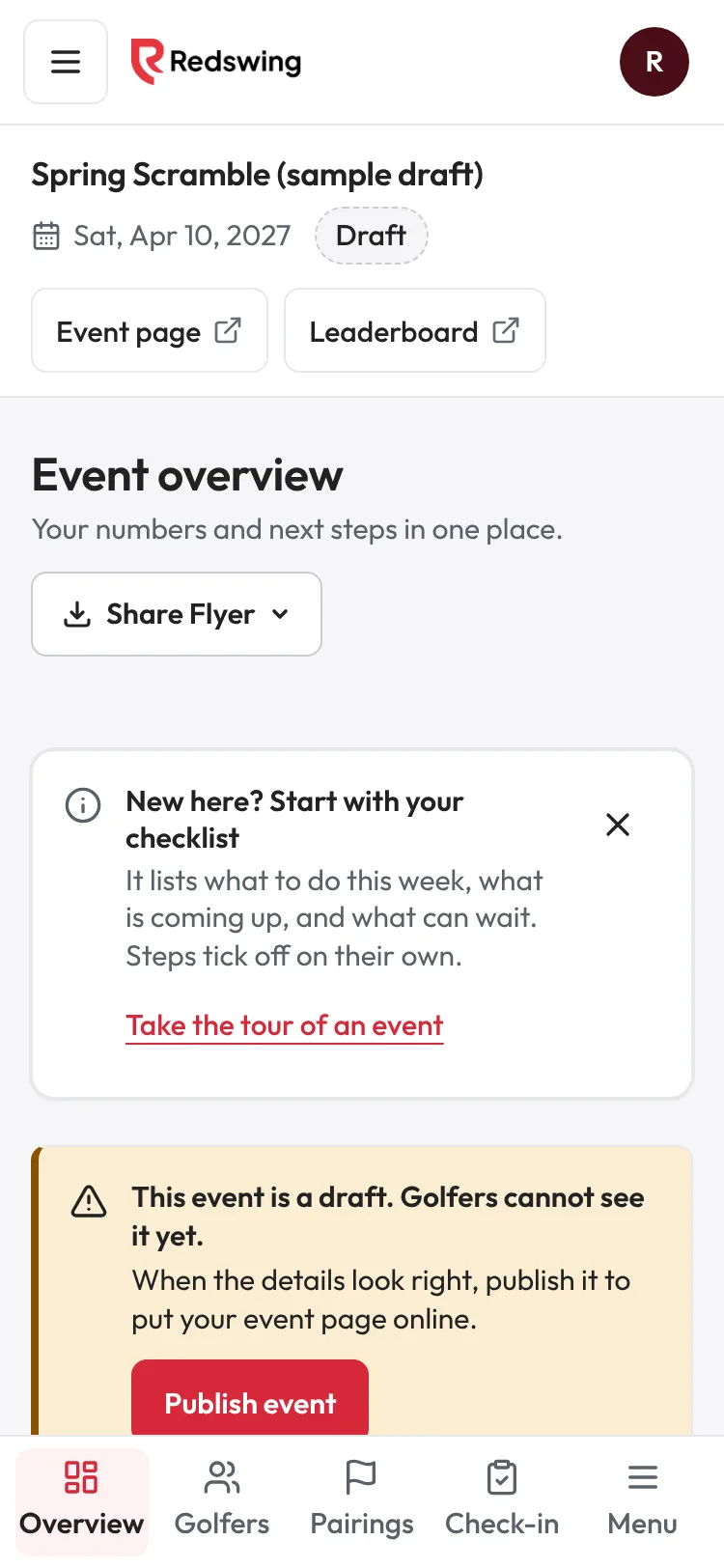
Step 1 of 3: A draft event says so at the top of its Overview. Golfers cannot see it yet.
Sample event. Not real data.
Publishing puts your event page online so golfers, sponsors and donors can find it. Until then it is a private draft.
Who can do this: Admin or Editor.
Before you publish
- Date, course and start time are right. Change them in Event settings, under Event details. See Change your event's name, date, time, course or price.
- How golfers pay. New organizations let golfers reserve a spot and pay you directly; you click Mark paid when the money comes in. To take cards, connect your Square account on Get paid. See How sign-ups and payments work.
- What golfers receive (round, cart, meal) is filled in for a paid event, so the tax notice is right. The Overview warns you if it is missing.
Two ways to publish
From the setup steps (a new event). Click Publish now (shown once the name, course and date are in) or Publish event on the Review step. The event goes live straight away.
From the Overview (a draft). An event made with Duplicate, for example next year's, starts as a draft.
- Open the event. The Overview says "This event is a draft. Golfers cannot see it yet."
- Click Publish event.
- You see "Your event page is live." and a panel with your link.
Share your link
In the Your event page is live panel on the Overview:
- Copy link and paste it into an email, a text, a newsletter or a post.
- Download QR code for flyers and posters.
- Share on Facebook, Email the link, Text the link, or View the page to see what golfers see.
See Share your event link and QR code.
What happens next
- Your page is public at a link like redswing.io/events/your-event-name.
- Redswing emails your organization's contact email to say the event is live, and how golfers can pay.
- Publishing does not text or email golfers. You share the link.
- You can keep editing everything after you publish. Changes show on the page right away.
Common problems
| What you see | Why | What to do |
|---|---|---|
| "Give the event a name." / "Add the course." / "Pick the event date." | A required detail is missing | Fill it in under Event settings, then publish. |
| "The event date is in the past. Change it in Settings, under Event details." | A duplicated event kept an old date | Change the date in Event settings, then publish. |
| "The registration close date has already passed." | The sign-up deadline is before today | Change or clear Registration closes in Event settings. |
| "Ask an admin or editor to publish it." | You are a Viewer | Ask an Admin or Editor. |
| The Overview says "Paid sign-ups are paused." | Card payments are not on and paying you directly is turned off | Open Get paid and turn on letting golfers reserve a spot and pay you directly, or connect Square. |
| Golfers say the page is not found | The link was mistyped, or the event is still a draft | Use Copy link on the Overview. See My event page shows "not found". |
There is no unpublish button. To stop sign-ups, set Registration closes in Event settings, under Event details. See Stop taking sign-ups.
Related
Screenshots show a sample event. Not real data.