
Use an event on your phone
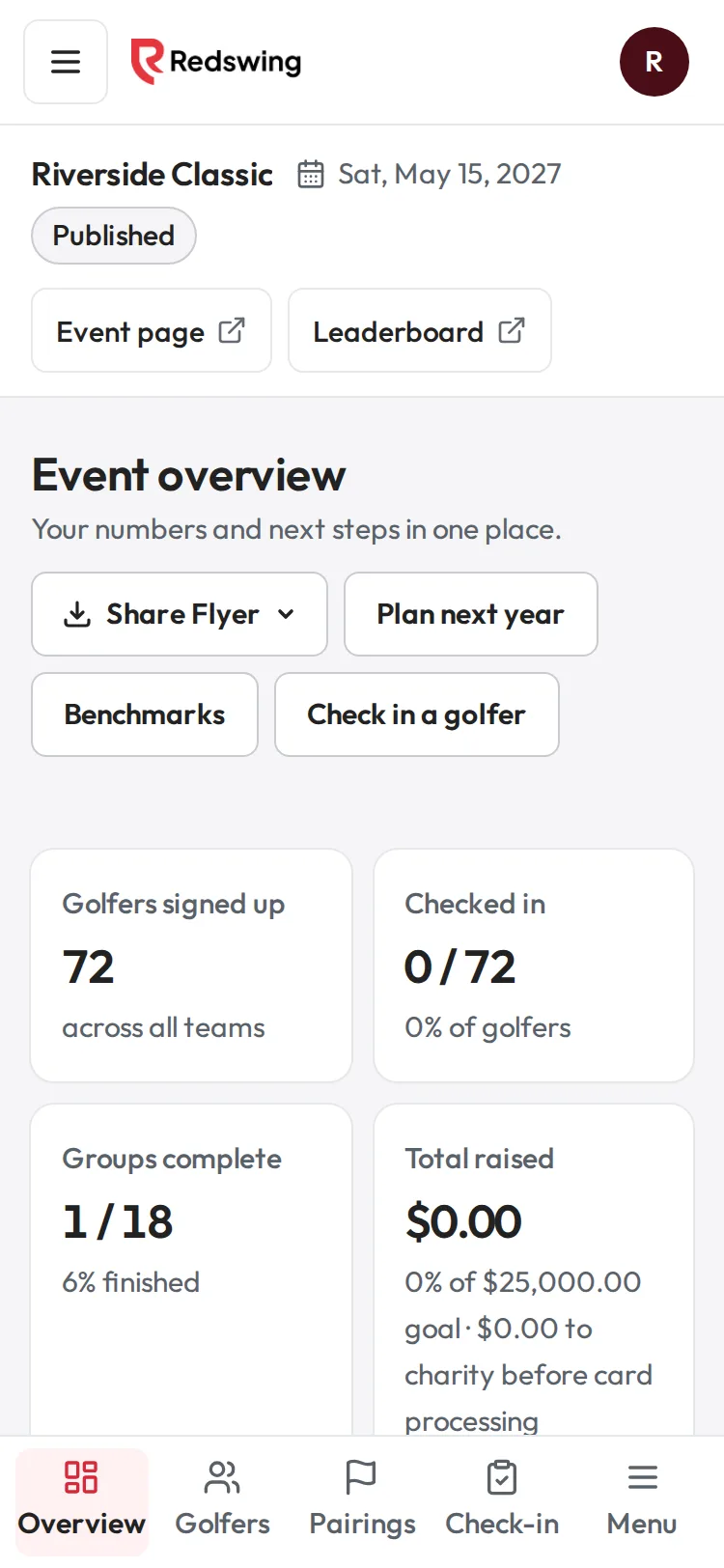
Step 1 of 3: On a phone, the bar at the bottom opens Overview, Golfers, Pairings and Check-in.
Sample event. Not real data.
Everything in the dashboard works in your phone's browser. There is no app to download: go to redswing.io and sign in.
Steps
- Sign in on your phone. See Sign in.
- Outside an event, tap the menu button at the top left (three lines) to open the sidebar: Home, Launch checklist, Get paid, Team, Settings and the rest.
- Inside an event, a bar at the bottom of the screen has Overview, Golfers, Pairings and Check-in, one tap away.
- Tap Menu at the bottom right for every other section of the event, such as Scoring, Sponsors or Event settings.
- Tap a section. The menu closes and the page opens.
- Your account menu is the round initial at the top right: Organization settings, Your profile, Team, Help center and Sign out.
What works best where
| On a phone | On a computer |
|---|---|
| Check-in at the registration table | Building the event and the event page |
| Getting a group's scoring link or QR code | Importing a golfer list |
| Watching the Scoring page and the leaderboard | Making pairings and printing |
| Marking a golfer paid, adding a walk-up golfer | The report and tax letters |
Tips for event day
- Add redswing.io to your phone's home screen from the browser's share menu, so it opens like an app.
- Keep your phone charged and bring a battery pack: check-in and scoring pages keep the screen busy.
- Ask AI floats above the bottom bar; on event day it shows an Event day tag.
Common problems
| What you see | Why | What to do |
|---|---|---|
| I can't find the sidebar | On phones it lives behind the menu button (top left) or Menu (bottom right inside an event) | Tap either one. |
| A table is cut off | Wide tables scroll sideways | Swipe left on the table, or turn the phone sideways. |
| I was signed out | Your browser cleared its data | Sign in again; nothing is lost. |
Related
Screenshots show a sample event. Not real data.