
Tell golfers how to pay you
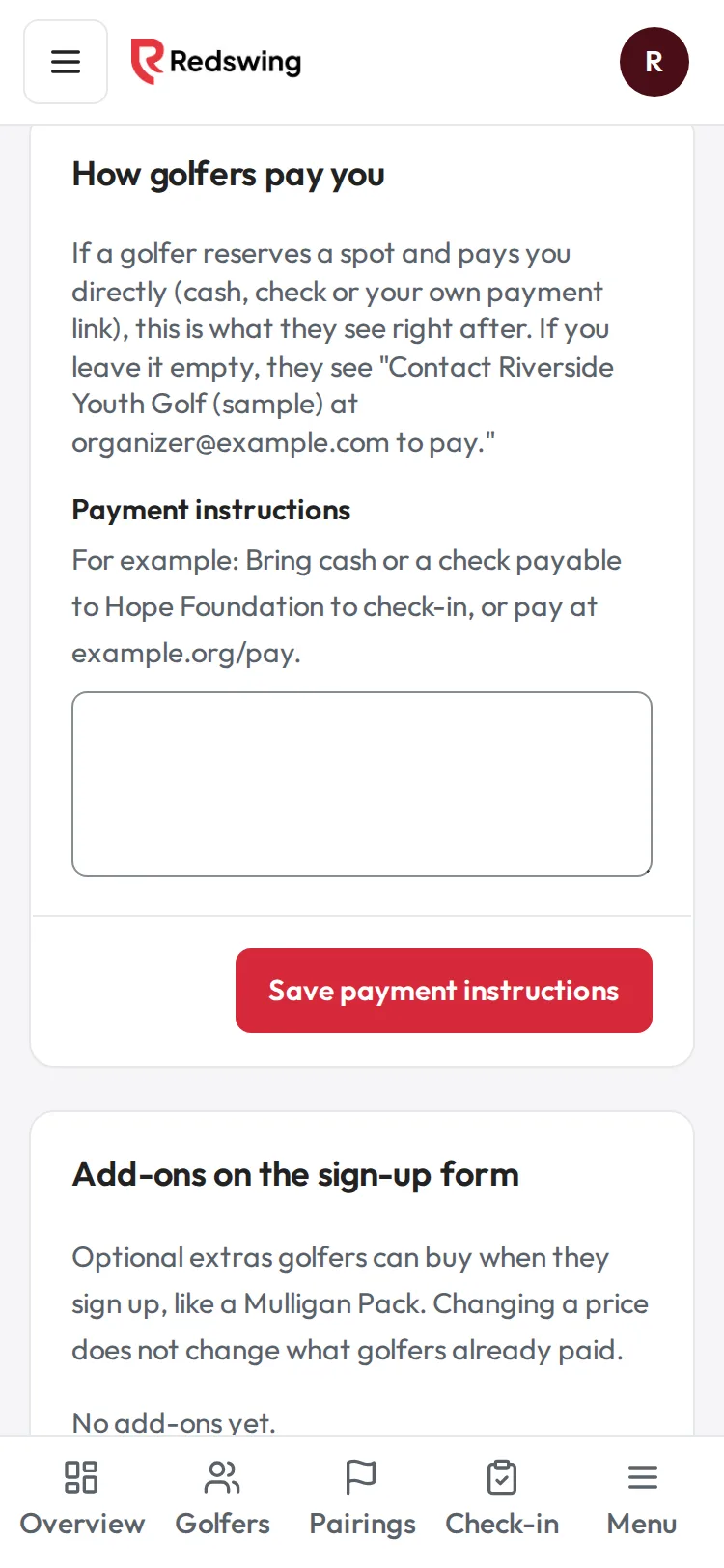
Step 1 of 3: In Event settings, find How golfers pay you. Write what golfers should do to pay you.
Sample event. Not real data.
A golfer who reserves a spot and pays you directly needs to know how. Your instructions appear right after they reserve, and in their confirmation email.
Who can do this: Admin or Editor. Time: two minutes.
Steps
- Open your event and choose Event settings in the sidebar.
- Find the card How golfers pay you.
- Type your instructions in Payment instructions (up to 1,000 characters). For example: "Bring cash or a check payable to Hope Foundation to check-in, or pay at example.org/pay."
- Tap Save payment instructions. You see "Saved."
What golfers see
- Right after they reserve: the amount they owe, "Your spot is saved. The organizer will confirm once they receive your payment.", and your instructions.
- In their confirmation email: the amount, "to pay the organizer directly", and "How to pay:" with your instructions.
If you leave the box empty, the screen tells them to contact you at your organization's contact email, and the email has no "How to pay" line. If your organization has no contact email either, golfers see "Ask the organizer how to pay (cash, check or their own link)."
Write good instructions
- Who to make a check out to, and where to mail or bring it.
- Whether they can pay at check-in.
- Your own payment link, if you have one, written out in full.
- A deadline, if you have one.
Things to know
- These instructions only show when a golfer reserves to pay you directly. Golfers who pay online by card never see them.
- Changing them later does not resend anything. Golfers who already reserved keep what they were sent.
Related
- Let golfers reserve a spot and pay you directly
- See and clear the payments you are waiting on
- Run your event with cash, checks or your own link
Screenshots show a sample event. Not real data.