
A tour of Get paid
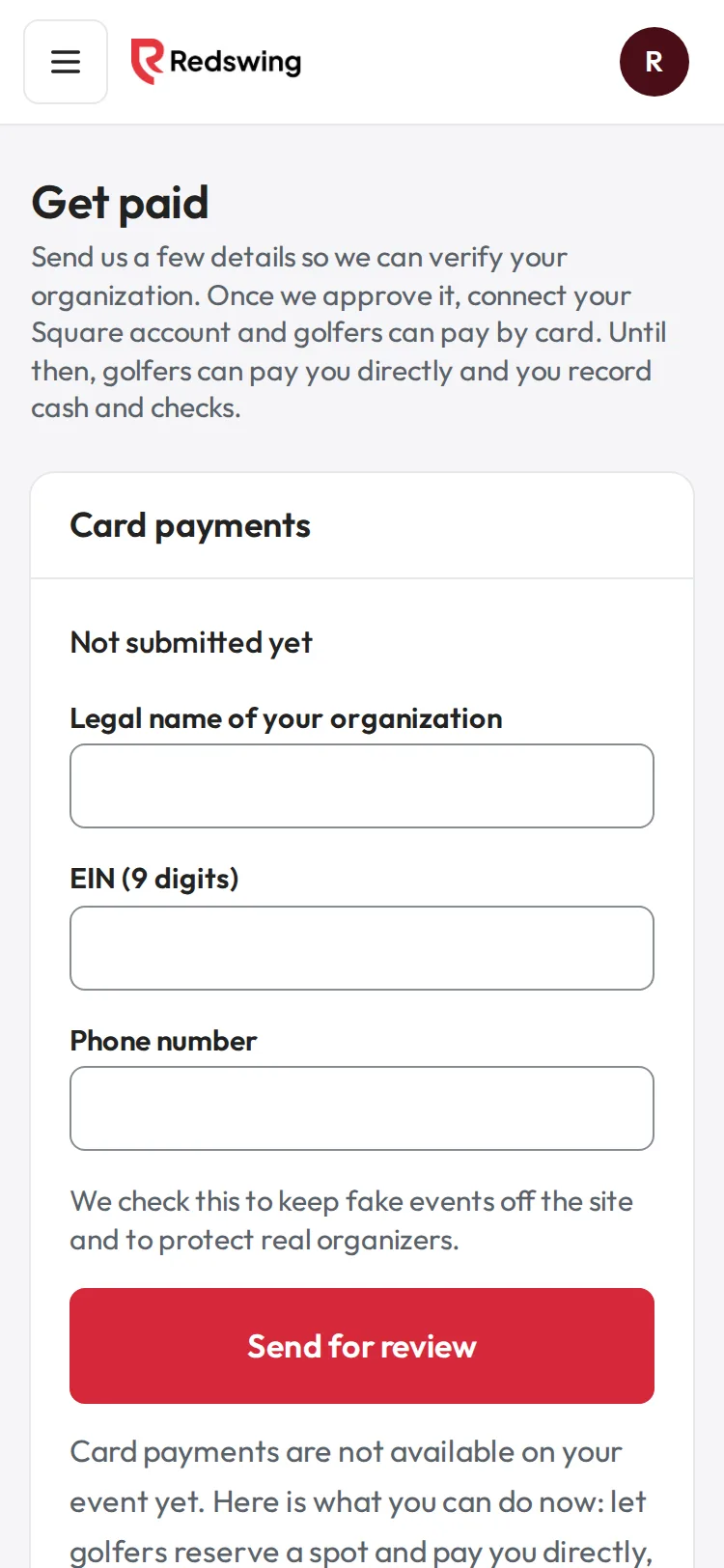
Step 1 of 5: Get paid starts with your card-payment status.
Sample event. Not real data.
Get paid is where your organization sets up card payments and keeps track of money golfers owe you. It covers all your events at once. Open it from Get paid in the main sidebar (under Money), or from Get paid in an event's sidebar.
1. Card payments
The box at the top shows one status line:
| Status | What it means | What you do |
|---|---|---|
| Not submitted yet | You haven't asked for card payments. | An Admin fills in the short form and taps Send for review. See Ask for card payments. |
| We are reviewing your details | Redswing is checking your organization. | Nothing. Golfers can still pay you directly meanwhile. |
| Approved | You can connect Square. | An Admin taps Connect your payment account. See Connect your Square account. |
| Your payment account is connected. | Golfers can pay by card. | Nothing. |
| We could not approve this request | The details did not pass the check. | Correct them and send again, or ask Ask AI. |
| Card payments are paused | Card payments are stopped for your organization. | See Card payments are off for my event. |
More on each: What each card-payment status means.
2. "Can't take card payments yet" notices
Once your organization is ready for cards, a yellow notice appears for any event that isn't linked to a course from the course list: "{event} can't take card payments yet". Tap Pick your course to fix it. See Card payments are off for my event.
3. The pay-you-directly switch
Under Let golfers reserve a spot and pay you directly (cash, check or your own link):
- On: golfers can reserve a spot and pay you directly, or
- Off: golfers cannot reserve a spot until card payments are on.
An Admin taps Turn on or Turn off. See Turn "pay the organizer" on or off.
4. Payments you are waiting on
Everyone who reserved a spot (or a sponsorship) and owes you, across all your events, newest first. Each row names who, what for and which event, the date and the amount. Tap Got cash, Got check, Paid another way or Comp (free for the golfer) when you have it.
See See and clear the payments you are waiting on.
5. Refund a payment
The link at the bottom opens the refund page for card and hand-recorded payments. See Refund a golfer or team that paid by card.
Who can do what
| Task | Who |
|---|---|
| See the page | Everyone on your team |
| Send details for review, connect Square, turn the switch on or off | Admin |
| Mark payments received | Admin or Editor |
| Card refunds | Admin |
| Record cash or check given back | Admin or Editor |
Related
- Ask for card payments
- Connect your Square account
- What each card-payment status means
- See and clear the payments you are waiting on
- Refund a golfer or team that paid by card
Screenshots show a sample event. Not real data.